Why Screenshot Is Not Working on Windows 10
If you are pressing Windows key + PrtSc on Windows 10 and nothing seems to happen, you are not alone. Many users face this issue when trying to capture the entire screen, especially after updates or on certain keyboards.
In most cases, the screenshot is actually taken, but it is either saved somewhere unexpected or blocked due to system or keyboard settings.
How Screenshot Normally Works in Windows 10
Before fixing the issue, it helps to understand how screenshots work.
- PrtSc → Copies entire screen to clipboard
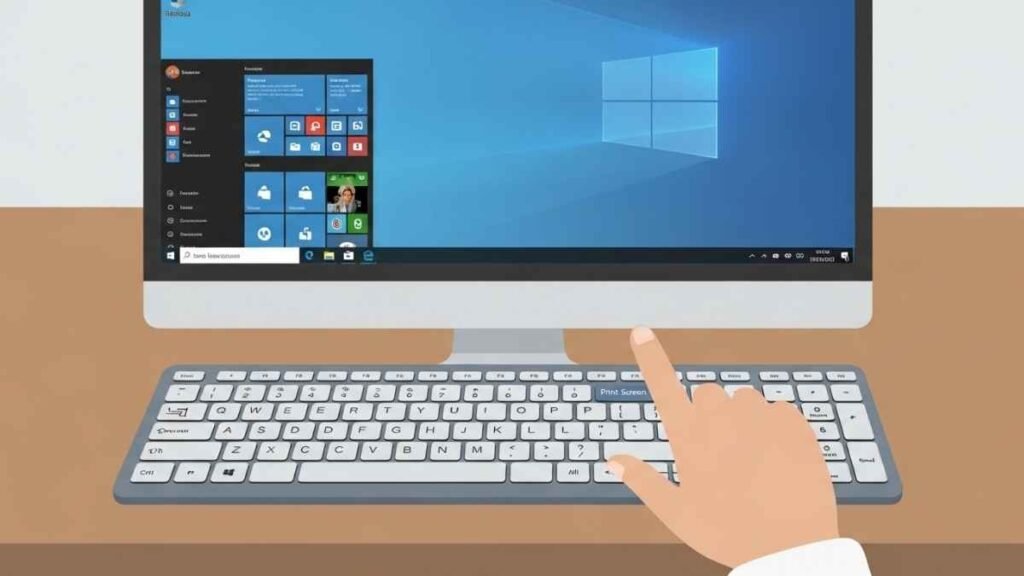
- Windows + PrtSc → Saves entire screen automatically
- Alt + PrtSc → Copies active window only
If you are trying to capture the entire screen, Windows + PrtSc is the correct method.
Common Reasons Windows + PrtSc Is Not Working
Here are the most common causes.
Screenshot Is Saved Automatically (Not Visible)
When you press Windows + PrtSc, Windows saves the image automatically instead of showing it.
The file is saved in:
Pictures → Screenshots
Many users think it didn’t work because nothing pops up.
Function (Fn) Key Is Required
On some laptops, you must press:
Fn + Windows + PrtSc
Without the Fn key, the screenshot command won’t work.
Clipboard or Keyboard Issue
If the Print Screen key itself is not working, Windows cannot capture the screen properly.
OneDrive Screenshot Settings
If OneDrive is enabled, screenshots may be redirected or blocked by sync settings.
Windows Update or System Glitch
Occasionally, Windows updates cause temporary issues with system shortcuts.
How to Fix Screenshot Not Working on Windows 10
Follow these steps in order.
1. Check the Screenshots Folder
Go to Pictures → Screenshots and see if the image is already saved.
2. Try Fn + Windows + PrtSc
Especially important for laptops.
3. Use Snipping Tool or Snip & Sketch
Search for Snipping Tool or Snip & Sketch and use:
- Full screen snip
- Window snip
These tools work even if PrtSc fails.
4. Check OneDrive Settings
If OneDrive is running:
- Right-click OneDrive icon
- Go to Settings
- Disable “Automatically save screenshots”
5. Restart Windows Explorer
- Press Ctrl + Shift + Esc
- Restart Windows Explorer
This refreshes system shortcuts.
Alternative Ways to Take a Full Screenshot
If shortcuts still fail, you can:
- Use Snipping Tool → Full Screen
- Use Windows + Shift + S
- Use third-party screenshot tools
When This Becomes a Hardware Issue
If:
- PrtSc never works
- External keyboard also fails
- Other keys malfunction
Then the keyboard itself may be faulty.