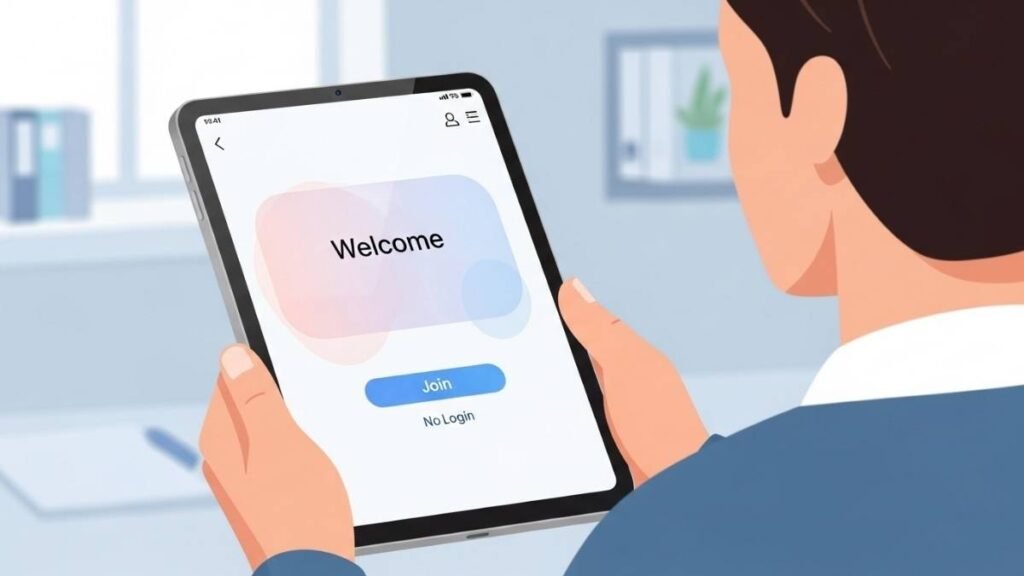
Why Sniffies App Shows “Join” Instead of Login on iPad
If you installed the Sniffies app, completed payment, and now only see a “Join” option instead of Login on your iPad, you are not alone. This is a common issue and usually happens because of how the Sniffies account was originally created or how the app handles logins on iPad.
In most cases, the problem is not related to your payment. Your account is still active—you just need to log in the correct way.
Common Reasons Login Is Missing in the Sniffies App
Understanding the cause makes the fix much easier.
Account Was Created in a Browser
If you originally created your Sniffies account using Safari or another browser, the app may not automatically show a login option.
App Interface on iPad Is Different
On iPad, some apps show Join by default and hide the login option inside menus or links.
Already Logged Into a Guest Session
Sometimes the app opens in a guest or limited mode, which only shows the join option.
App Cache or Session Issue
Temporary app data issues can prevent the login screen from appearing.
How to Log In to Sniffies App on iPad
Follow these steps carefully. One of them usually solves the issue.
1. Look for “Already Have an Account”
On the Join screen, scroll down or tap small text like:
- “Already have an account?”
- “Sign in”
This option is often easy to miss on iPad.
2. Try Logging In Through Safari First
Open Safari on your iPad and:
- Go to the Sniffies website
- Log in using your email or original sign-up method
- Once logged in, open the app again
This often syncs your session with the app.
3. Use the Same Login Method You Signed Up With
If you created your account using:
- Email → log in with email
- Social login → use the same option
Switching login methods can cause the app to show only “Join”.
4. Close and Reopen the App
Fully close the Sniffies app from the app switcher, then reopen it and check again for the login option.
5. Update or Reinstall the App
If the issue continues:
- Update the app to the latest version
- Or uninstall and reinstall it
Then log in again using the correct method.
Does Payment Automatically Log You In?
No. Payment confirms your subscription, but you still must log in manually using the same account you paid with. If you see “Join,” it does not mean your payment failed.
When to Contact Sniffies Support
Contact support only if:
- You confirmed payment
- Login works in browser but never appears in the app
- Reinstalling does not help
Provide your payment email and device details for faster help.